
See your Claude Code usage — tokens, costs, sessions, projects — right inside VS Code.
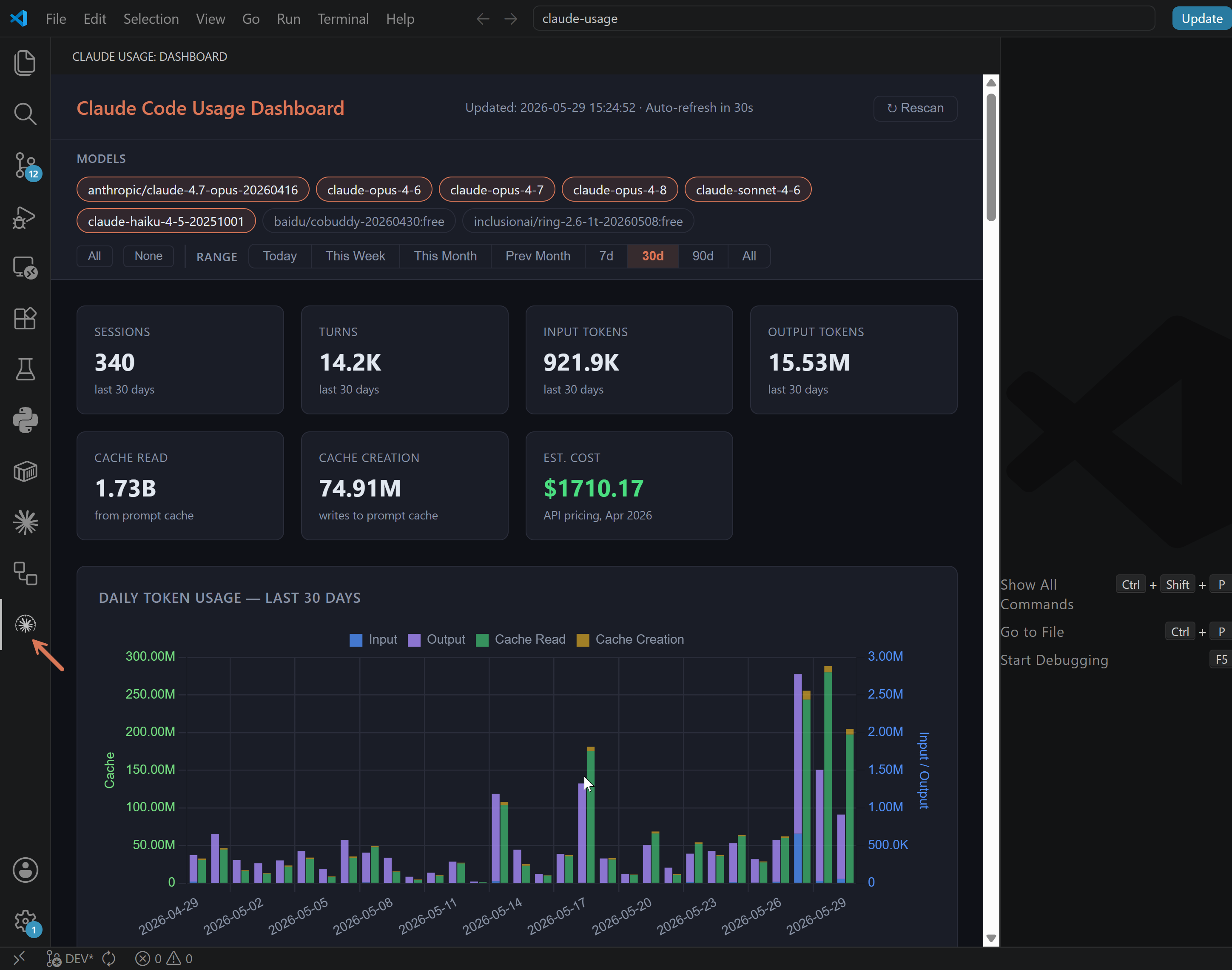
The extension reads your local Claude Code JSONL transcripts (the ones Claude Code already writes regardless of plan) and renders the same dashboard the Python tool ships, embedded as a VS Code sidebar. No API calls, no telemetry — all data stays on your machine.
Works on API, Pro, and Max plans. Captures usage from the Claude Code CLI, the official VS Code extension, and dispatched Code sessions.
Search the Extensions sidebar for "Claude Code Usage" (publisher: PawelHuryn), or open the marketplace link from the Open VSX page.
Every GitHub Release attaches a ready-built .vsix. Download it, then either drag it onto the VS Code Extensions view, or run:
code --install-extension claude-usage-phuryn-<version>.vsix
Clone the repo and run the install script for your platform. Each script builds the .vsix (npm install + vsce package) and then installs it via code --install-extension — you don't need an existing .vsix, the script produces one.
macOS / Linux / WSL (bash):
git clone https://github.com/phuryn/claude-usage
cd claude-usage/vscode-extension
./scripts/install.sh
Windows — run the script in PowerShell. Invoking .\scripts\install.ps1 from Git Bash (or double-clicking it) just opens the file in an editor, because Windows maps .ps1 to "Edit", not "Run". The line below runs it regardless of which shell you're in or your execution-policy setting:
git clone https://github.com/phuryn/claude-usage
cd claude-usage/vscode-extension
powershell -ExecutionPolicy Bypass -File scripts\install.ps1- Python 3.8 or newer on your
PATH. Almost everyone running Claude Code already has Python installed; if not, see python.org/downloads. On Windows make sure to check "Add Python to PATH" during the installer.
That's the only dependency. The Python sources (cli.py, scanner.py, dashboard.py) are bundled inside the extension — no separate clone or Homebrew install needed.
- Click the gauge icon in the activity bar (left sidebar of VS Code).
- The extension starts the dashboard server on a free local port and embeds it in a sidebar webview.
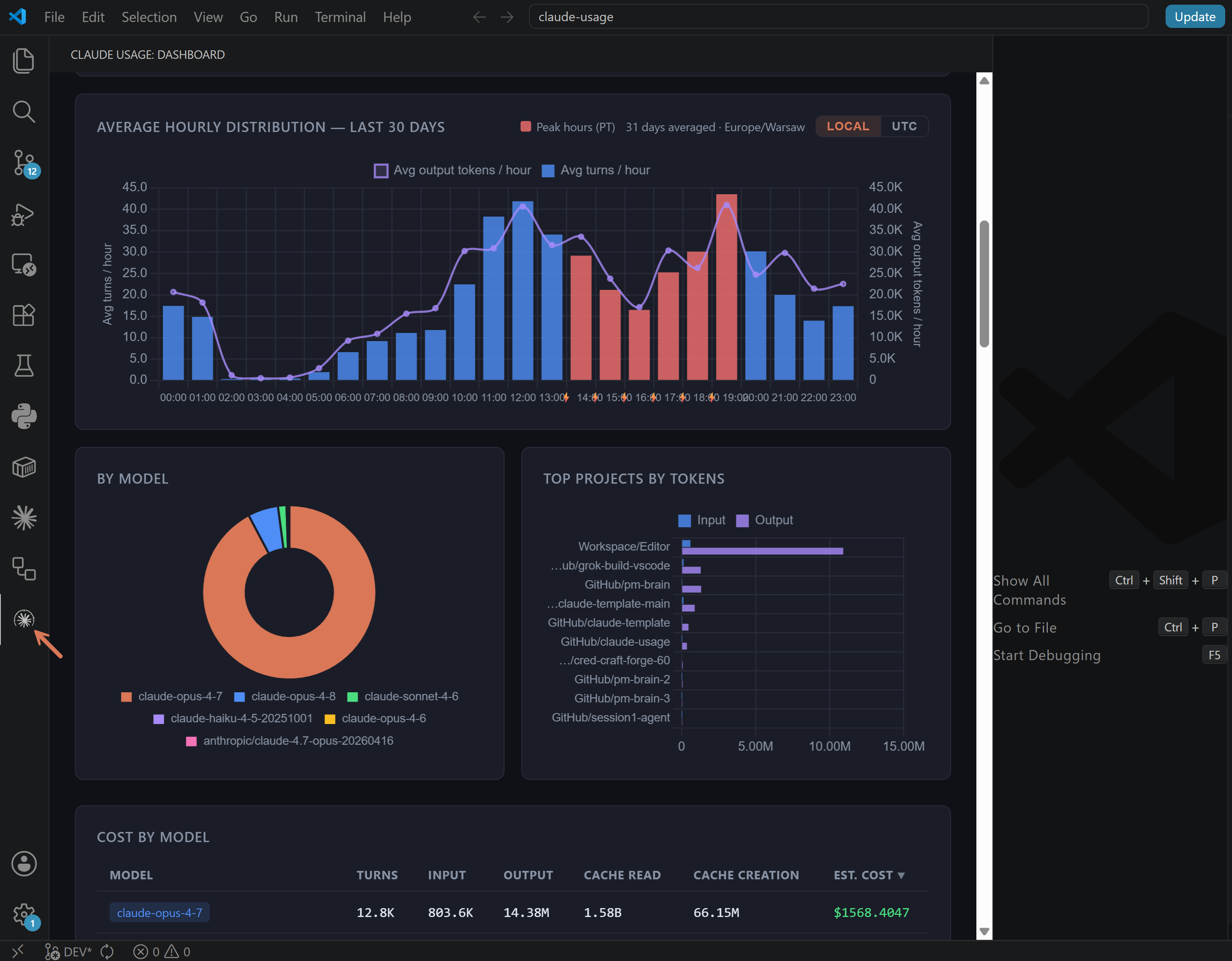
- Filter by model, range, or project — same UI as the standalone web dashboard.
Open the Command Palette (Ctrl+Shift+P / Cmd+Shift+P):
| Command | What it does |
|---|---|
| Claude Usage: Open Dashboard | Reveal the sidebar and start the server (also fires automatically when you click the activity-bar icon) |
| Claude Usage: Rescan Transcripts | Refresh the iframe; the dashboard's own Rescan button runs an incremental scan that adds new usage without touching existing history |
| Claude Usage: Restart Server | Kill and respawn the Python process (use after changing settings) |
| Claude Usage: Show Logs | Open the extension's output channel — useful when something doesn't work |
| Setting | Default | Description |
|---|---|---|
claudeUsage.pythonPath |
(auto-discover) | Path to a Python 3.8+ interpreter. Leave empty to auto-detect (claude-usage on PATH first, then python3, then python). |
claudeUsage.cliPath |
(bundled) | Path to a custom cli.py (or its parent directory). Empty = use the bundled copy that ships with the extension. |
claudeUsage.port |
0 |
Port for the local dashboard server. 0 = OS picks a free one. |
When you click the icon, the extension resolves how to run the dashboard in this order:
claudeUsage.cliPathsetting if you've set one- The bundled
python/cli.pythat ships inside this.vsix(most installs hit this) - The
claude-usageshim onPATH(if you installed via Homebrew) - A
cli.pyin any open VS Code workspace folder (the legacy "open the cloned repo" path) - A sibling
cli.pyfrom the extension dir (dev mode, when running from source via F5)
If none of those find anything, you'll get a friendly message in the sidebar — most often "Python 3.8+ is required" with a platform-specific install hint.
The extension only:
- Reads local JSONL transcripts from
~/.claude/projects/(and the Xcode coding-assistant directory on macOS, if present) - Runs a small HTTP server bound to
127.0.0.1(localhost-only — never0.0.0.0) on a port the OS picks for you - Embeds that server's dashboard in a VS Code webview
No data leaves your machine. No API calls. No telemetry.
- "Python 3.8 or newer required" — install from python.org and reload VS Code (
Ctrl+Shift+P→Developer: Reload Window). On Windows make sure "Add Python to PATH" is checked in the installer. - Sidebar stays blank or shows "starting…" — run
Claude Usage: Show Logs. The extension logs the resolved Python path, the install mode, the spawn command, and any stdout/stderr from the server. - Dashboard renders but shows "No usage recorded" — Claude Code hasn't written transcripts to
~/.claude/projects/yet. Run a Claude Code session first.
The Python tool, this extension, and a Homebrew formula all live at github.com/phuryn/claude-usage. Bug reports and feature discussions: Issues, Discussions.
Made by The Product Compass Newsletter.